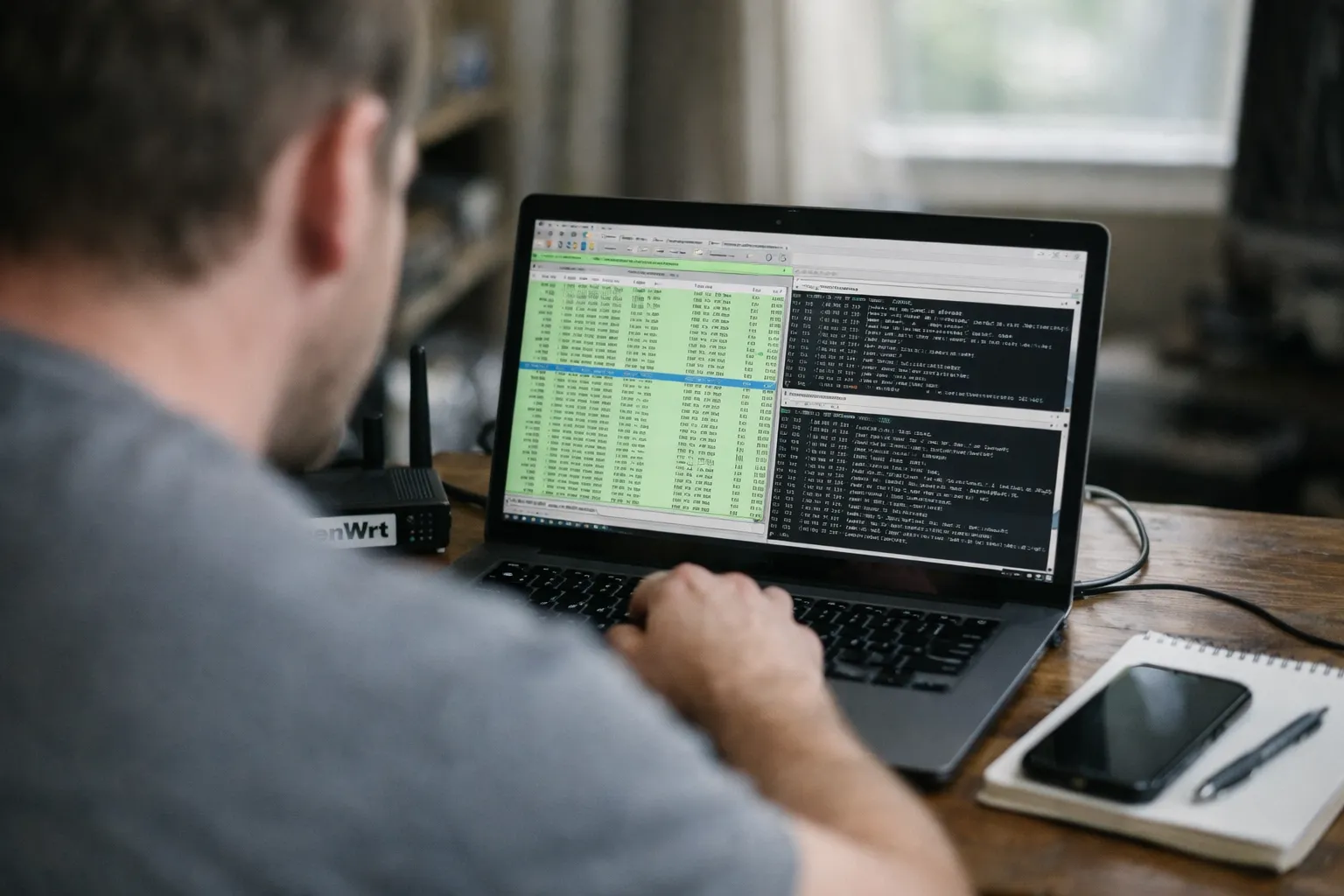
Introduction
What you will learn: how to detect, diagnose, and eliminate DNS and IPv6 leaks from home routers, laptops (Windows, Linux, macOS), and mobile devices (Android, iOS) using current best practices and tooling as of November 2026. This guide is for privacy‑conscious VPN users, home network administrators, and advanced hobbyists who want reproducible tests, firewall and resolver configurations, and clear verification steps that reflect recent changes in resolver encryption and VPN client behavior.
Why this matters now: DNS over HTTPS/DoT proliferation, wider IPv6 deployment, and more-capable consumer VPN clients mean leaks are both easier to create and harder to notice. Router-level controls and repeatable verification are now essential to maintain privacy across OS updates and changes in resolver behavior.
Prerequisites / Context
- Comfort with command line on your platform and administrative access on router and devices.
- Access to your router’s firewall/resolver configuration (OpenWrt, pfSense, commercial firmware) or willingness to run a small local resolver/proxy.
- A VPN provider or endpoint you control (WireGuard/OpenVPN/IPO based clients) and knowledge whether it supports IPv6 routing.
- Tools: curl, dig/host/resolvectl or PowerShell, tcpdump/pcap, Wireshark/tshark, and nftables/iptables/pf/pfSense experience.
Overview: workflow for reliably fixing leaks
- Map how DNS and IPv6 are handled end‑to‑end for each device and at the router.
- Run quick client-side checks, then deep packet captures on LAN and VPN interfaces.
- Apply fixes: ensure DNS goes through the tunnel, block DNS to the WAN, and either route IPv6 through VPN or block IPv6 at the edge.
- Automate and monitor: schedule periodic tests and capture short traces to detect regressions after OS/VPN updates.
Step 1 — Map where leaks can occur (2026 considerations)
Modern leak vectors to explicitly check:
- Encrypted DNS bypass: Browsers and apps increasingly use DoH/DoT or integrated ECH-capable endpoints. These can bypass OS resolver settings if apps use their own DoH client.
- IPv6 split-routing: Many VPNs still default to IPv4-only; with rising IPv6 usage on networks, IPv6 traffic can leak unless explicitly routed or blocked.
- Per-app VPNs and system resolvers: Android and iOS per-app or per-profile VPNs can cause DNS to resolve outside the tunnel if resolver APIs are misused.
- Router-based DNS proxies: Home routers frequently run dnsmasq/Unbound; if the router uses WAN for upstream and the VPN is device-only, all devices may leak DNS via the router.
Step 2 — Basic, quick tests (client-side)
Run these lightweight checks while connected to the VPN. Replace interface names as necessary.
- Check IPv4 public IP via VPN:
curl --interface tun0 -s https://ifconfig.co
Why: confirms IPv4 traffic is leaving the tunnel IP. - Check IPv6 reachability and source:
curl -6 -s https://ifconfig.co || echo "No IPv6 or blocked"
Why: detects any IPv6 source seen by the web. - Check DNS resolver seen remotely:
dig +short TXT whoami.ds.akahelp.net @1.1.1.1
Or use web tools: ipleak.net, dnsleaktest.com (use with caution — these are third‑party). - Check local resolver mapping:
resolvectl status    # Linux systemd-resolved
scutil --dns          # macOS
Get-DnsClientServerAddress -AddressFamily IPv4,IPv6  # PowerShell on Windows
Why: confirms which server each interface is configured to use.
Step 3 — Deep packet tests (high‑confidence verification)
Capture packets on both the VPN interface (tun0/wg0) and the LAN/WAN interface to see leaks. Short 30–60s captures are usually sufficient.
sudo tcpdump -i tun0 -n port 53 or ip6 -w vpn-tun.pcap
sudo tcpdump -i eth0 -n port 53 or ip6 -w lan.pcap
Inspect with tshark/Wireshark:
tshark -r lan.pcap -Y 'dns or ipv6' -T fields -e frame.number -e ip.src -e ip.dst -e dns.qry.name
If DNS queries or IPv6 packets appear on your LAN/WAN interface, you have a leak. Capture evidence before making changes so you can compare after fixes.
Step 4 — Fix DNS leaks
Principle: make your resolver reachable only via the VPN or force devices to use a local resolver that forwards only through the VPN. Also block direct DNS from LAN→WAN (UDP/TCP 53) and common DoH/DoT IPs if you control the router.
Router-level (OpenWrt / pfSense / commercial)
- Run a local resolver (Unbound or dnsmasq) on the router and configure upstream to resolvers reachable only via the VPN interface.
- Example dnsmasq snippet (OpenWrt /etc/dnsmasq.conf):
- Firewall: drop DNS to WAN and block known DoH/DoT endpoint IPs if you want to prevent app-level DoH escaping. Example nftables rule:
- Note: Blocking DoH by IP is brittle because DoH endpoints use shared IPs and CDNs; a robust approach is to use an internal DNS resolver and enforce allowlist/denylist policies on the router.
# use upstream 10.200.0.1 reachable only via VPN
server=10.200.0.1
interface=lan
bind-interfaces
table inet filter {
  chain forward {
    type filter hook forward priority 0;
    iif "lan" oif "wan" udp dport {53,853} drop
    iif "lan" oif "wan" tcp dport {53,853} drop
  }
}
Linux desktop (systemd-resolved)
- Set per-link DNS to the VPN interface so applications query the tunnel’s resolver:
- Block outbound DNS on the physical interface:
- Verify with resolvectl and a short tcpdump on eth0 to ensure no DNS leaves via eth0.
sudo resolvectl dns tun0 10.200.0.1
sudo resolvectl domain tun0 ~.
sudo nft add rule inet filter output oifname "eth0" udp dport 53 drop
sudo nft add rule inet filter output oifname "eth0" tcp dport 53 drop
Windows
- Confirm VPN interface DNS servers:
Get-DnsClientServerAddress -AddressFamily IPv4,IPv6
- If DNS leaks, use Windows Firewall to block outbound UDP/TCP 53 when InterfaceAlias is your Ethernet adapter, and configure a local DNS proxy (e.g., stub resolver) bound to the VPN interface or localhost.
- Enterprise or provider clients may offer “DNS over tunnel” — prefer clients that explicitly state DNS routing behavior.
macOS
- Check current resolver state:
scutil --dns
- macOS often prefers per-service resolvers; run a local DNS proxy (dnscrypt-proxy or stubby) bound to 127.0.0.1, then configure the system to use localhost and firewall/block UDP/TCP 53 to WAN interfaces using pf rules.
Step 5 — Fix IPv6 leaks
Two choices: route IPv6 through the VPN (preferred for privacy) or block IPv6 at the edge (safer if your VPN lacks IPv6 support). As IPv6 adoption continues to grow, blocking IPv6 can increasingly break services — prefer routing where possible.
Option A — Route IPv6 over the VPN (recommended)
- WireGuard: add ::/0 to AllowedIPs on client and ensure server advertises a routed IPv6 prefix or offers NAT66. Example client AllowedIPs:
AllowedIPs = 0.0.0.0/0, ::/0
- OpenVPN: server must push IPv6 routes (push "route-ipv6 ::/0") and server network must provide routing for those addresses. Confirm with:
ip -6 route show
- Verify: curl -6 https://ifconfig.co should show the VPN’s IPv6.
Option B — Block IPv6 at the edge (fallback)
- Router: drop all LAN→WAN IPv6 in firewall (nftables ip6 daddr ::/0 oifname "wan" drop).
- Linux (temporary): sysctl net.ipv6.conf.all.disable_ipv6=1 (note: system-wide impacts).
- Windows/macOS: prefer router-level blocking where possible rather than disabling IPv6 system-wide.
Note: Blocking IPv6 can break IPv6-only services and some ISP features. If you must block, monitor application behavior after the change.
Step 6 — Prevent leaks from split tunneling and app policies
- Audit split-tunnel rules in your VPN client: prefer destination-based rules (subnet/IP blocks) over per-app policies when privacy is a priority.
- For per-app VPNs on Android/iOS, test DNS resolution within the app context (developer tools, packet capture on router) to ensure app DNS uses the tunnel.
- Where possible, enable “Block connections without VPN”/Always-on on Android and the equivalent secure-profile features on iOS to prevent apps from falling back to the network.
Step 7 — Re-run verification and automate monitoring
Automate periodic checks so OS and client updates don’t silently reintroduce leaks.
- Simple verification script examples (run by cron/task scheduler): check public IPs and DNS server
- For high confidence, schedule a 30s tcpdump on the LAN interface once daily and rotate pcap logs for inspection if alerts trigger.
- Push results to a remote logging endpoint you control (encrypt transport) so you get notifications if a leak is detected while you’re away.
# IPv4/IPv6 check
curl -s https://ifconfig.co/json -o /tmp/vpn-ips.json
# DNS resolver fingerprint
dig +short TXT whoami.ds.akahelp.net @1.1.1.1 > /tmp/dns-whoami.txt
Updated examples and firewall rules you can adapt (nftables)
table inet filter {
  chain output {
    type filter hook output priority 0;
    iif "lo" accept
    # Allow DNS to VPN resolver only
    oif "tun0" udp dport 53 accept
    oif "tun0" tcp dport 53 accept
    # Block DNS to WAN
    oif "wan" udp dport 53 drop
    oif "wan" tcp dport 53 drop
    # Block DoT (853) to WAN if you want to prevent encrypted DNS escaping
    oif "wan" tcp dport 853 drop
    # Drop IPv6 to WAN unless it's routed to wg0/tun0
    ip6 daddr ::/0 oif "wan" drop
  }
}
Adapt interface names and add exceptions for trusted management hosts. For pfSense/pf, use analogous rules in the firewall GUI and assign gateway groups carefully so VPN interface traffic is permitted.
Mobile specifics (2026)
Android and iOS continue to evolve resolver and VPN APIs. As of 2026:
- Many Android distributions allow per-app VPNs and Always-on VPN with “block without VPN.” Always test per-app behavior with a router-side packet capture.
- iOS routes system DNS through the VPN for system-wide VPNs, but app extensions or SDKs can implement their own DoH/DoT—test with network capture.
- Use on-device diagnostic tools where available (developer options, packet logging via tethered Mac) and verify with remote checks.
Real‑world troubleshooting checklist
- Activate VPN → run public IPv4/IPv6 checks (curl ifconfig.co).
- Run browser and command-line DNS leak tests.
- Capture 30–60s on LAN and VPN interfaces; inspect for DNS/IPv6 on wrong interface.
- If leaks appear, implement router resolver + firewall block, then retest devices individually.
- Automate daily checks and capture short traces to detect regressions after updates.
When to contact your provider
If your provider’s client does not offer IPv6 routing or does not push DNS through the tunnel, open a ticket. Ask for: documented DNS handling, whether the client supports ::/0 AllowedIPs, and explicit guidance for router-level setups. Reputable providers provide configuration examples for common router firmware and state their handling of DoH/DoT and ECH.
Common mistakes to avoid
- Blocking DNS by hostname/IP only: DoH uses shared CDN addresses; block at protocol level or use an internal resolver.
- Relying on browser checks alone: browser-based tests may not show per-app leaks; always capture traffic at the LAN edge.
- Disabling IPv6 system-wide without assessing impact: this can break IPv6-only services.
- Uploading pcaps with sensitive data to public services—sanitize before sharing.
Pro tips
- Prefer router-level resolver enforcement for network-wide consistency. It reduces per-device configuration and survives OS updates.
- Use short automated packet captures (rotate and prune) rather than continuous capture to minimize storage and privacy risk.
- Maintain a small “honeypot” test VM on the LAN that runs scheduled leak tests and emails results—useful for quick triage.
- When blocking DoH, prefer blocking by TLS SNI fingerprints or using an allowlist on the router proxy rather than IP blocks where possible.
FAQ
Do modern VPNs fully prevent DNS and IPv6 leaks by default?
Not always. Many VPN clients now support DNS routing and IPv6, but defaults vary. Some clients remain IPv4-only or let applications use their own DoH. Always verify client behavior with both quick checks and packet captures rather than assuming defaults.
If my VPN provider supports IPv6, do I need to configure anything?
Yes. The server must advertise IPv6 routes or provide a routed prefix, and the client must be configured to accept ::/0 or the provider’s prefix. Verify with ip -6 route and a curl -6 test. If in doubt, request provider configuration examples for common client types.
Will blocking DoH/DoT on the router break browsing?
It can. Blocking DoH/DoT to the WAN prevents apps from using encrypted DNS to bypass your resolver. Some apps may degrade or use fallbacks. Prefer using a local DNS resolver that forwards via the VPN and combine with targeted firewall rules rather than blunt IP blocks.
How often should I retest for leaks?
Run automated checks daily and perform a packet capture after any OS, router, or VPN client update. Major OS updates are the most common cause of regression, so schedule a manual verification after those events.
Is disabling IPv6 a safe long‑term strategy?
Disabling IPv6 can stop leaks, but it increasingly breaks services as adoption grows. Use it as a temporary mitigation while you implement routing over VPN or until your provider supports IPv6 properly.
Final advice
Fixing DNS and IPv6 leaks is a combination of configuration, router-level enforcement, and repeatable verification. In 2026, encrypted DNS and wider IPv6 usage make it more important to enforce resolver and IPv6 behavior at the network edge and to automate monitoring. Follow the steps above, keep short capture evidence for validation, and prefer routing IPv6 through a privacy‑aware VPN when available.